This StreamYard tutorial shows how to live stream, record a podcast, or capture video content without the usual tech headaches. Follow simple setup tips and studio workflows to get a polished live stream fast.
Below is an AI-assisted summary of the key points and ideas covered in the video. For more detail, make sure to check out the full time stamped video above!
StreamYard tutorial — Start with the right setup (account + browser)
Before touching layouts and overlays, get the basics right so the platform runs smoothly.
- Go to the StreamYard website and create an account (free trial available).
- Use a Chrome-based browser for the best stability.
- Safari can work but is more likely to be dodgy and produce glitches.
From the dashboard, create a live stream, recording, or webinar (depends on plan). View upcoming scheduled streams and past streams with download options.
Switch to Dark Mode (seriously useful)
Dark mode reduces glare and reflections when using a teleprompter.
Theme switching helps maintain focus during long sessions.
Create a live stream (and set it up like a real YouTube upload)
From the dashboard:
- Select Live Stream and click Create a live stream.
- Choose destination(s) such as YouTube, Facebook Page, or Facebook Group.
- Skip destination setup if not ready.
Go live to multiple destinations
Multistreaming is one of StreamYard’s best features.
- Choose YouTube, Facebook Page, Facebook Group, or other destinations.
- Multistreaming saves time and reaches more viewers.
Choose stream type: live or prerecorded
Pick whether the broadcast is a normal live stream or a prerecorded stream that plays a video.
Nail your title, description, and monetisation options
Treat this like a standard YouTube upload.
- Add a strong title.
- Add a useful description that includes helpful viewer links.
- Toggle referral/affiliate links on or off.
Pick format and visibility
Configure key stream settings.
- Orientation: Landscape, Portrait, or Both.
- Visibility: Public (discoverable), Unlisted (link-only), or Private (invite-only).
Schedule + thumbnails (including AI thumbnails)
You can go live now or schedule for later.
Upload a thumbnail or generate one with AI.
Important: scheduled streams won’t auto-start — manually trigger Go Live.
Check settings before entering the studio
Once the stream is created, StreamYard prompts for camera and microphone access.
- Allow access to camera and microphone.
- Click Settings and sanity-check the essentials.
Recommended settings to review
- General: stream resolution/quality (example: 720p).
- Camera: choose the correct camera and set camera resolution (aim for at least 720p).
- Audio: select the right microphone and speakers.
- Audio extras: enable echo cancellation and background noise removal if needed.
Visual effects (optional, but handy)
StreamYard includes tools like skin enhancement, green screen effects, virtual backgrounds, and color filters.
Adjust brightness, contrast, and colour correction as needed.
Hotkeys (and Elgato Stream Deck-friendly)
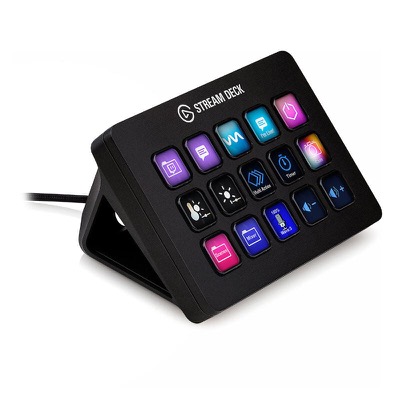
Hotkeys make it easy to run a Elgato Stream Deck (Amazon) or use keyboard shortcuts for faster control.
Use StreamYard Studio like a pro (stage, layouts, and controls)
After settings, click Enter Studio.
Add sources to the stage
The preview starts blank until assets are added.
- Add the camera to the stage.
- Toggle extra cameras, screen share, and other media sources from the bottom panel.
Switch layouts live (instantly)
Layout presets let you swap looks in real time.
- Full screen.
- Split screen (50/50).
- Layouts with background or border areas.
Hover over a participant to make them full screen, remove someone from the stage, mute them, or adjust participant volume.
Create custom layout presets
Build custom layouts by clicking the + icon.
- Add elements like a dynamic camera grid or media slot.
- Drag and resize items, then save the layout for reuse.
Host controls (fast access)
Host controls live along the bottom.
- Mute mic (shortcut: Command + D on Mac, Control + D on Windows).
- Toggle camera on/off.
Engagement + on-screen elements (comments, banners, overlays)
StreamYard keeps key tools in a side panel so switching between platforms is unnecessary.
Comments (and featured comments)
- View comments inside StreamYard while live.
- Click a comment to feature it on screen.
- Remove or reply to comments directly from the interface.
Banners and scrolling tickers
- Create banners ahead of time and set duration.
- Convert banners into a scrolling ticker for news-style updates.
Logos, overlays, and QR codes
- Preload logos, overlays, and custom graphics (some options require paid plans).
- Generate a QR code viewers can scan, for example linking to Primal Video PLUS.
Video clips and backgrounds (including AI)
- Preload intro clips, countdown timers, and “be right back” clips.
- Use AI-generated backgrounds, uploaded images, or presets.
Sound effects + background music
StreamYard includes built-in sound effects and lets users upload custom sounds or background music.
Brand styling
Adjust brand colour, theme styles (Bubble Classic, Minimal, Block), fonts (some premium), and camera crop/aspect for picture-in-picture looks.
Bring in guests (even from a phone)
To invite guests:
- Click Add guest and copy the unique invite link.
- Send the link to the guest; they must allow camera and microphone access and enter a name.
Tips for guests:
Go Live (and end the stream cleanly)
At the top of the studio, confirm destinations and double-check visibility, title, and details.
Click Go Live and optionally play a preloaded intro video.
When finished, click End stream and optionally play an outro video.
After the stream: AI clips, downloads, and reuse your setup
StreamYard supports AI-generated clips after a stream ends.
- AI pulls the transcript and finds moments worth clipping.
- Download the full recording from the dashboard.
- Use manual editing tools inside StreamYard.
- Media may be deleted after 24 hours unless upgraded.
Past streams can be viewed, downloaded, or reopened in the studio to replicate the same settings.
The Sticky Note Plan for calm, confident live streams
The sticky note method keeps focus and prevents on-air hesitation.
-
- Opening sentence: a clear first line or hook to start strong.
-
- The goal of the stream: why the stream exists (Q&A, promote a program, hangout).
-
- Call to action (CTA): what viewers should do next.
Make the CTA easy to act on with a link in the description, on-screen banner, or pinned comment.
Make your next StreamYard session run smoother
Lock in Chrome, do a quick settings check, and build a couple of reusable layouts.
Use the sticky note plan to stay calm, clear, and focused on adding value.
Done is better than perfect — hit Go Live and improve 1% each stream.