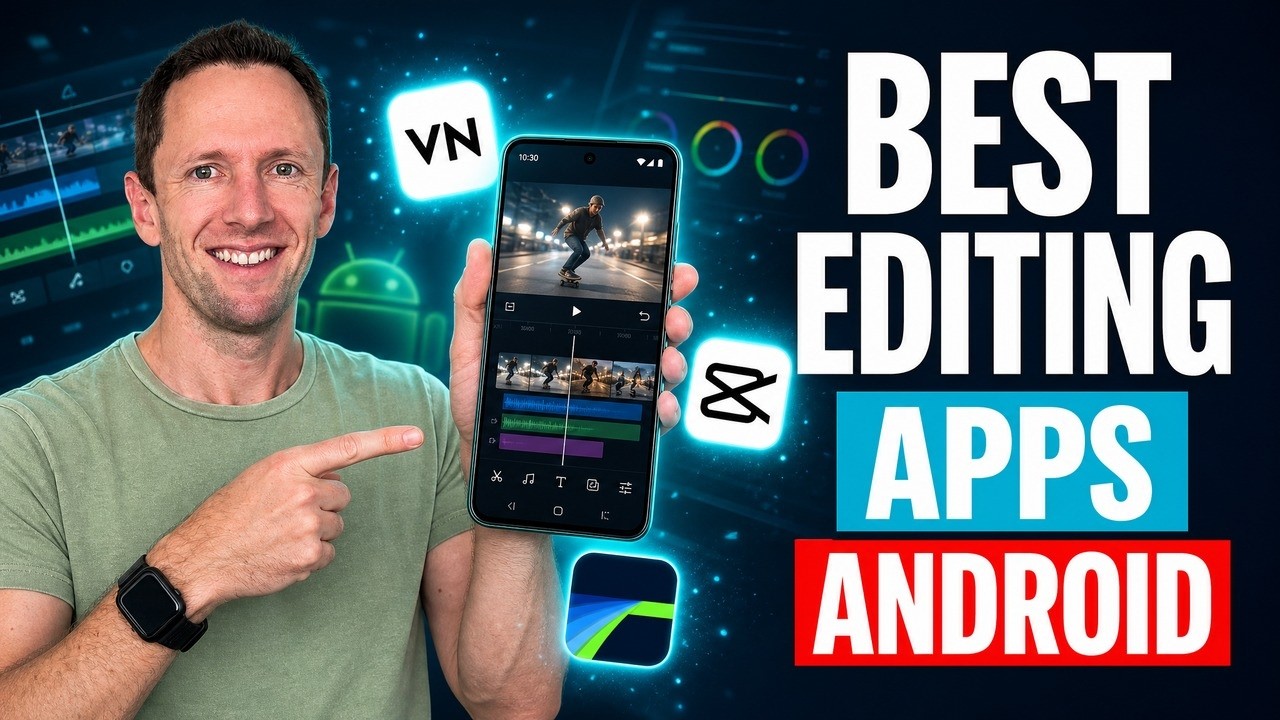
Editing videos on Android doesn’t have to be confusing or overwhelming. This VN Video Editor tutorial 2025 reveals an easy, step-by-step workflow ideal for anyone jumping into video editing for beginners on Android. With the right systems, editing on your phone can be smooth, quick, and lead to results that make your content pop.
Below is an AI-assisted summary of the key points and ideas covered in the video. For more detail, make sure to check out the full time stamped video above!
Getting Started with VN Video Editor on Android
Before adding transitions or music, real editing success starts with a solid foundation. VN Video Editor stands out as one of the best free Android video editing apps for beginners, packed with pro features but easy to use.
- Open VN Video Editor and tap the plus (+) button.
- Select “New Project” to create your video timeline.
- Choose your main camera footage first to set the project’s aspect ratio and frame rate.
- Tap the “Original” button at the top if you want to adjust the video shape (widescreen, square, or portrait).
Navigating the Editing Interface
VN Video Editor’s timeline layout keeps editing organized from the start.
- Pinch to zoom for close or wide views of your edits.
- Layers separate your main footage, B-roll, titles, and music for easy management.
- Use playback controls to review edits instantly.
Step-by-Step Editing with the Primal Video Method
Trim the Fat First
Start strong by cutting out anything you don’t need—mistakes, dead air, or unwanted clips.
- Remove any default title cards VN Video Editor adds.
- Use the scissors tool to split and delete any section.
- Drag the yellow handles to trim the start or end of each clip.
- Reorder clips by holding and dragging for smoother story flow.
Add Overlay Clips & B-Roll
Enhance your main footage by adding extra clips or graphics.
- Tap the layer above your main video to import B-roll, photos, or other visuals.
- Adjust their position and size in the preview window.
- Trim and move B-roll so it syncs with your story.
Insert Titles and Text
VN Video Editor offers customizable titles for a polished look.
- Tap the title layer, pick a style, and enter your text.
- Edit fonts, colors, size, and position.
- Adjust how long titles remain on screen with timeline handles.
Use Transitions and Camera Moves (Sparingly!)
- Add transitions between clips with the ”+” button.
- For similar back-to-back shots, use a zoom or position change for a pro jump cut.
- Keep transitions simple to avoid a distracting look.
Spice It Up with Effects
- Use speed controls for slow or fast motion, including curve ramping.
- Add motion or effects with built-in presets (some advanced ones require premium access).
- Stick to subtle effects for a polished finish.
Add Music and Sound Effects
- Tap the music layer to add music, sound effects, or record voiceovers.
- Choose built-in tracks or import from Artlist or Epidemic Sound.
- Set where music starts, ends, and fades.
- Lower music volume to around 30 for background tracks so your voice stands out.
Fine-Tune Audio Levels
- Put on headphones to catch any audio issues.
- Mute or reduce B-roll audio if it overlaps with your main sound.
- Use “apply to all” for fast volume adjustments.
- Keep speech clear with music softly behind.
Colour Grading and Corrections
- Apply filters for quick style changes.
- Use manual settings for exposure, color temperature, contrast, and saturation.
- Make small tweaks for a consistent, natural look across all clips.
Export Your Video
- Tap the blue export icon in the top right.
- Use auto settings or manually select resolution, frame rate, and bitrate.
- Export saves your final video straight to your phone.
Pro Tips for Efficient Android Video Editing
- Trim your footage before adding extras.
- Focus on basics—ignore most features until your core edit is solid.
- Following a system like our Primal Video Method makes editing faster and easier.
Ready to Make Awesome Android Videos?
Creating pro-level videos on Android is easy. By prioritizing clean edits before adding extras, anyone can produce standout content quickly and confidently. These steps make editing stress-free and help your videos shine—progress beats perfection every time. Download the free PDF guide and AI prompt for a handy checklist on your next Android video project.