If you’ve ever searched for the perfect GIF and weren’t able to find it, you probably wondered how to make a GIF animation yourself. Well there’s a lot of different ways to make GIFs!
The best part is, you don’t need to know how to make GIFs with Photoshop to be able to create an awesome animated GIF. There are other GIF maker apps out there that help you convert video to GIF super easily.
So here’s how to make a GIF from a video clip with free software on iPhone, Android & desktop. In this video to GIF tutorial, you’ll learn to create a GIF animation super quickly AND easily!
After trialling and testing all the top GIF maker apps, the top one that we recommend is GIPHY.
GIPHY works on both desktop and mobile, so here’s what we’ll cover:
Let’s get started.

How to Make a GIF on Android & iPhone
We’ll be running through this process on an iPhone but the process is very similar on Android so feel free to follow along using either device.
Open the GIPHY app. You’ll notice you can access and create GIFs without even needing to create an account.
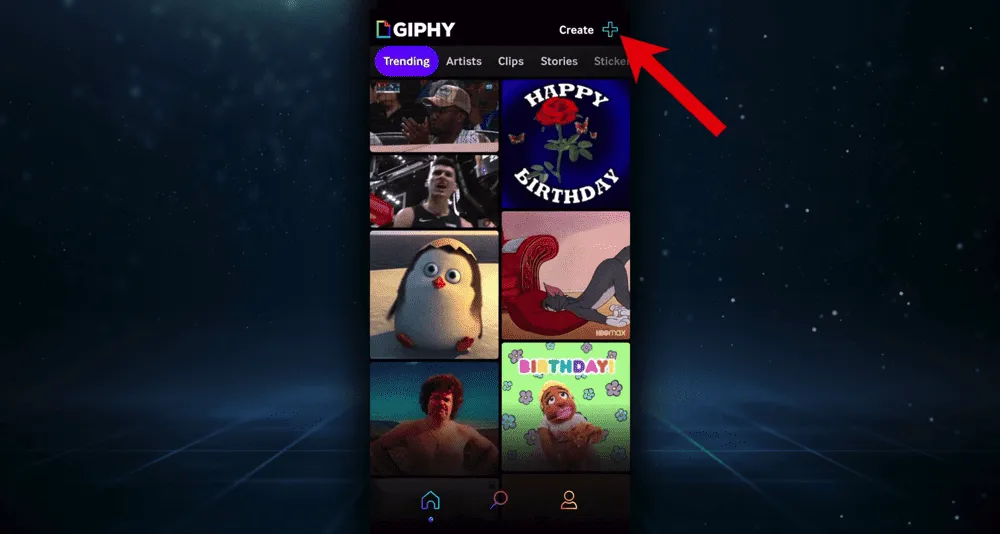
Go to Create in the top right corner and the camera will automatically open. You can record a GIF directly using the camera app or you can import a video that you’ve already got by tapping the Gallery icon in the bottom left corner.
There are a bunch of different filters you can swipe through and apply to your video.
There’s an extra feature on iPhone that currently isn’t available on Android. If you press the Green Screen icon in the top right corner, it will green screen out your background. Then you can record yourself on top of a trending GIF!
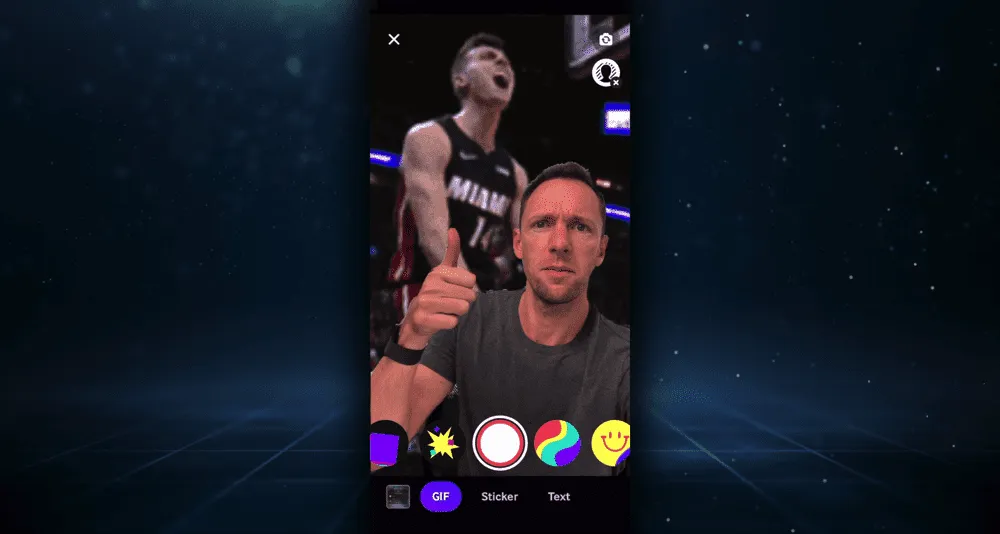
Once you’ve recorded or uploaded your video, there are a bunch of features you can use to edit and customize the GIF:
- Trim: This allows you to adjust the start and end time of your clip.
- Crop: You can select 1:1, 3:2, 16:9, 4:5 or 9:16. Generally 1:1 and 3:2 are the most common GIF sizes. You can also zoom in while using the Crop feature.
- Add Text: Type your text then make any adjustments e.g. location, size and rotation. There are lots of different text presets and styles you can choose from.
- Add Effects: You can add filters or effects to your GIF.
- Add Stickers: There are also stickers and GIFs that you can add into your GIF.
You can even use layers to customize the different aspects of your GIF. Just go to the Layers icon below the Crop button and layers will appear below the GIF.
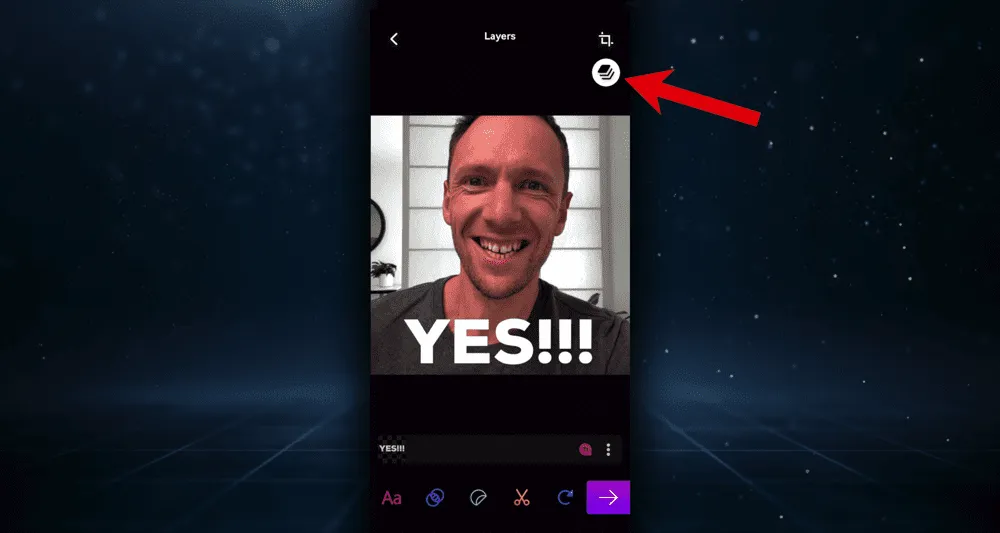
Once you’re happy with your GIF, press the purple arrow button. Then you’ve got a few options:
- Tap to copy the GIF to your phone (then you can paste it wherever you like e.g. Instagram, Messenger)
- Press Share GIF to directly send it via social media platforms or to save it to your phone
- Upload to the GIPHY library (you’ll need to create a free account to do this)
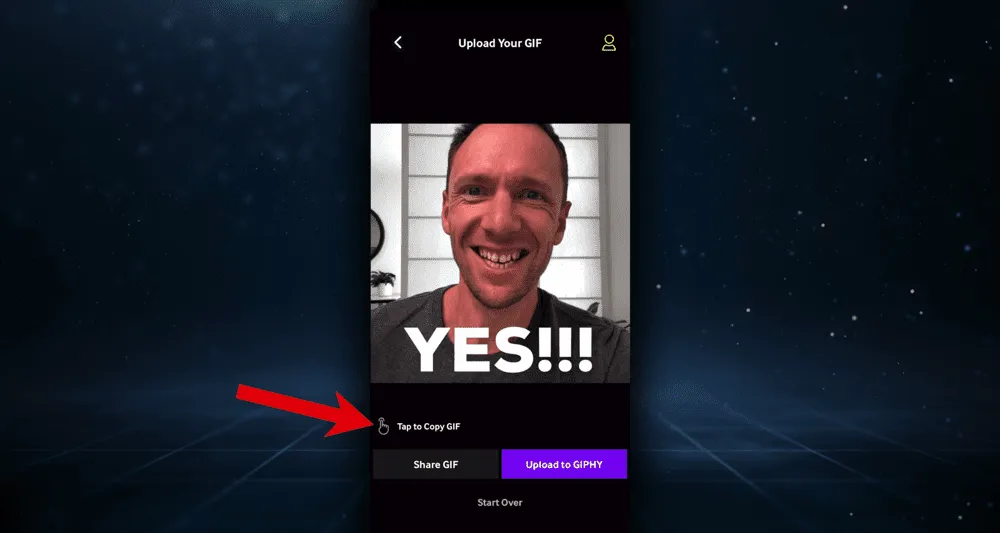
Then you’re done! Now let’s check out how to make a GIF on Mac or PC.
How to Make a GIF on Desktop
Go to giphy.com and you’ll notice the website looks very similar to the app.

Select the Create button in the top right corner. From here you can:
- Upload images or video files to create GIFs
- Upload images to create stickers
- Insert the GIPHY link of a GIF you’d like to edit or customize
- Insert a YouTube or Vimeo link of footage you want to convert to a GIF
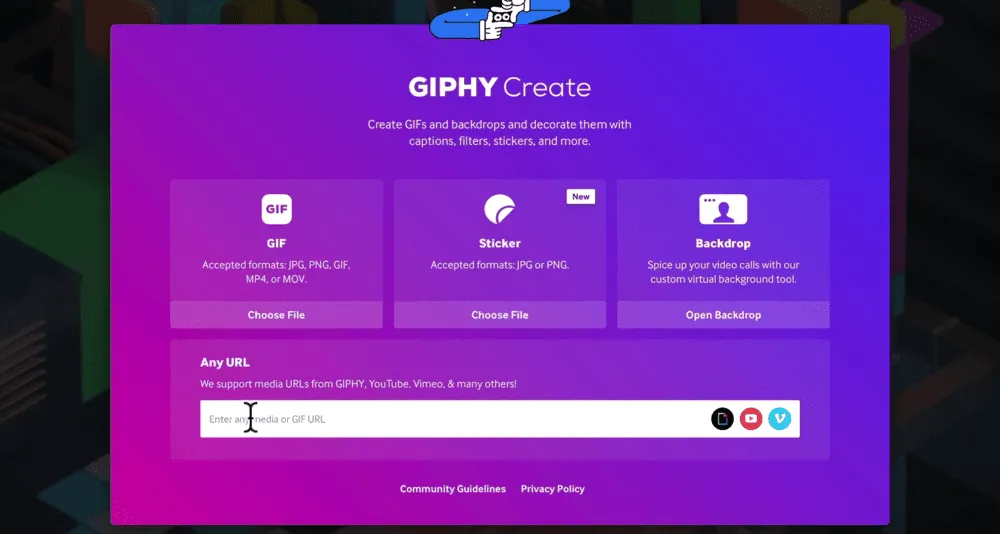
Choose the option that suits you. Then you’ll be prompted to log in or sign up. Unlike the app, you need to create a free account to use the desktop version.
After you’ve uploaded a video, you’ll see a preview window. This is where you can adjust the duration and start time of the video.
Lock down the specific footage you want to use and then press Continue to Decorate.
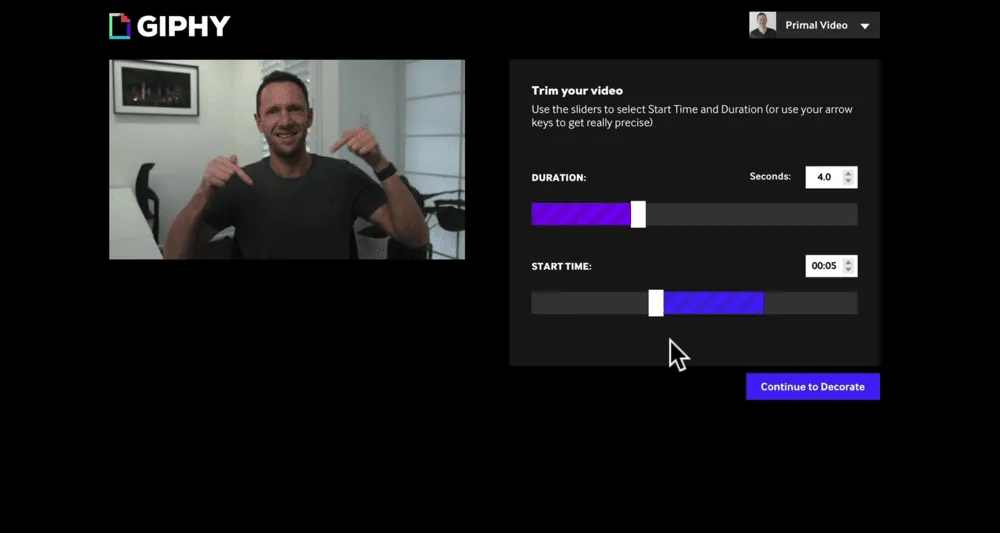
Probably the biggest feature you miss out on with desktop is the ability to crop your GIF to different sizes. Hopefully this is a functionality we see on the desktop version soon!
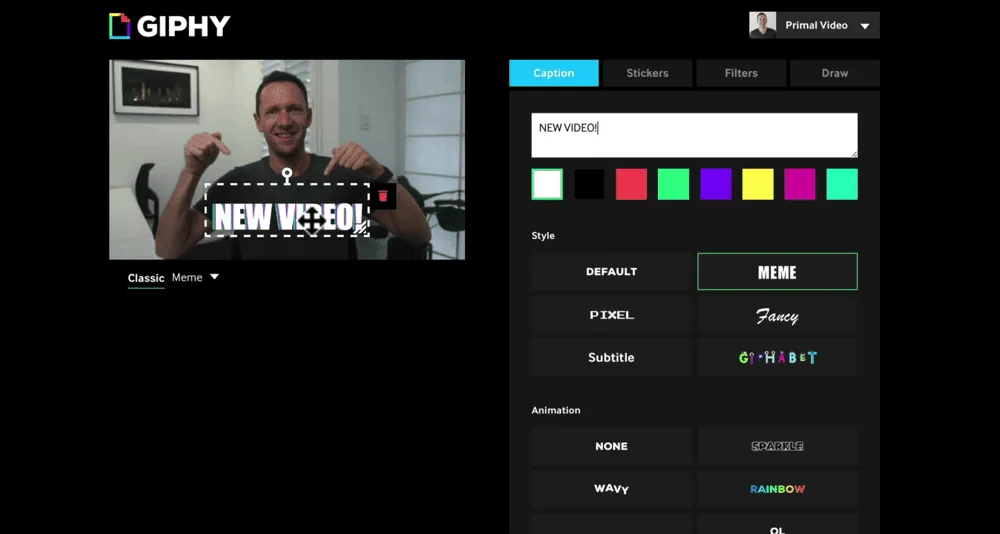
Just like in the app, you can add text, stickers and filters but you can also draw onto the GIF.
Within the text editor you can select different styles and animations.
Once you’re finished customizing the GIF, go to Continue to Upload.
On the upload page, you can specify whether the GIF will be private or public on your GIPHY account. You can add tags if it’s public so it’s categorized for when people search for it.
Then go ahead and select Upload to GIPHY.
When it’s finished uploading, you can share it, save it to the GIPHY library or press Download to save it onto your device.
Now You Know How To Create a GIF From Video
There you have it - our complete guide on how to make an animated GIF.
If you found this GIF tutorial useful, feel free to share it with others who might like to learn how to create GIFs as well.
Now that you’ve got your GIF creation down pat, learn How to Make Instagram Reels Like a PRO.