Today we’re going to show you exactly how to make YouTube Shorts.
Shorts are YouTube’s answer to the super popular short form videos we’ve been seeing as TikTok videos and Instagram Reels.
They’re also an incredible way to grow your channel and reach viewers - both subscribers AND non-subscribers.
In this ultimate guide we’ll cover everything from how to make YouTube Shorts to YouTube Shorts monetization.
Here’s everything we’ll cover in our YouTube Shorts tutorial:
- What Are Youtube Shorts
- How To Watch Youtube Shorts
- How To Interact On Youtube Shorts
- How To Make Youtube Shorts
- How To Upload Youtube Shorts
- How To Remix & Repurpose Youtube Shorts
- How To Create Youtube Shorts Without The App
- How To Upload Youtube Shorts On Desktop
- Youtube Shorts Analytics
- Youtube Shorts Monetization
If you’ve got questions about the time limit, size ratio, hashtags or the YouTube Shorts fund - this tutorial will provide some answers!
Let’s dive in.
What Are YouTube Shorts?
YouTube Shorts are vertical videos that are less than 60 seconds in length.
These are a totally different style of content to a regular YouTube video. This also means people engage with them differently. Because Shorts are so much shorter, they require much less commitment from viewers. They need to be easy to consume on-the-go.
Shorts are optimized for smartphones but they can also be viewed on desktop and TV.
Best of all, there are no requirements for who can create and upload Shorts. So even if you’ve got a brand new YouTube channel with very few subscribers, you can harness the power of Shorts.
But they do need to meet the requirements of being under 60 seconds and not being uploaded in widescreen. If it doesn’t tick those boxes, it won’t be a YouTube Short.
How to Watch YouTube Shorts
Short videos are now showing up in so many more places across the platform.
You can find Shorts:
- When you start scrolling down the YouTube homepage
- At the Shorts button in the bottom menu bar
- In the Subscriptions tab
How To Interact On YouTube Shorts
Here’s a quick rundown of how you can interact on Shorts on desktop.
Along the right menu bar, you can:
- Thumbs up
- Thumbs down
- View comments and leave your own comment
- Share
- View the creator’s channel
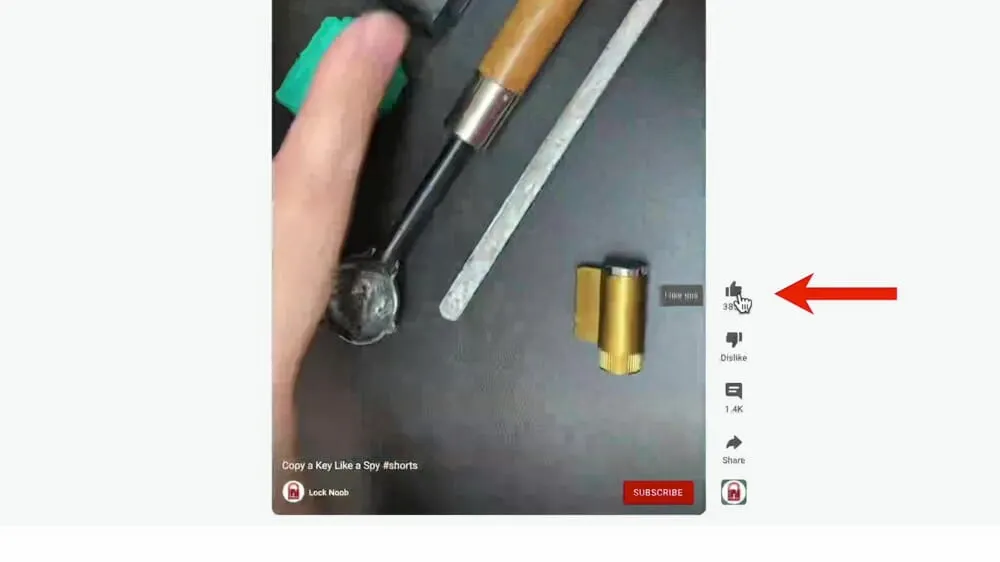
If you enjoy a Shorts video make sure you show some love and give it a thumbs up!
If you click the three dots icon, you can:
- View the video’s description
- Stop YouTube from recommending that channel
- Report the video
- Send feedback to YouTube
Down the bottom you can also view the Shorts title and subscribe to the channel. This is really powerful in terms of growing subscribers.
On mobile you’ll see all the same features plus access to closed captions AND three other tools:
- Use this sound
- Cut this video
- Apply green screen
These are designed to help you create MORE Shorts off the back of other creator’s content. We’ll share more on that in the next section.
How To Make YouTube Shorts
Now that you’ve got the lowdown, let’s get into how to create YouTube shorts.
As we just mentioned, there are some awesome Shorts creation tools on YouTube. But keep in mind that you don’t need to use these tools to create your Shorts - you can upload pre-edited videos as well.
Open the YouTube app, tap Create and select Create a Short. Then the Shorts camera will open.
Here you can:
- Adjust length (15 seconds or 60 seconds)
- Switch between front & back camera
- Adjust recording speed
- Set a countdown timer
- Add filters & effects
- Use green screen effect
- Retouch your image
- Adjust lighting
- Add music (limited to 15 seconds)
To start recording, tap and hold the Record button. At the top of the screen is the progress bar that tells you how much recording time you have left.
When you release the Record button, it will stop recording. To continue recording up to your length, you can just press and hold again.
This allows you to string multiple video clips together.
To remove your take, press the Undo button. To bring back a take that you’ve deleted, press the Redo button.
When you’re ready, tap the Tick button and you can preview your masterpiece. This is also where you can:
- Change the sound
- Adjust audio selection
- Add a title or text on screen
- Add a voiceover
- Adjust of your original audio and music volume
- Add more filters
- Open up timeline view
This timeline view is really powerful. It’s basically a cut down video editing tool. You can adjust the different layers for video, audio and titles to customize when and where they appear.
Once you’ve created your amazing Short, hit the Next button.
How To Upload YouTube Shorts
First up you’ll need to add a title. You’re limited to 100 characters to keep it short and catchy.
PRO TIP: You don’t need to include ‘#Shorts’ in your title or description anymore.
Decide whether you’d like the video to go out publicly to your YouTube channel, have it unlisted or private. You can also schedule it for release at a later date and time if you don’t want it to be published immediately.
Under Audience you need to specify if this content is made for children. In this section you have the option to restrict your content to over 18 years old only.
This is where you can also decide how you’d like to handle comments. It’ll come down to your specific content but we usually leave this as the default.
Once you’ve set all those specifications, hit Upload Short.
Nice work! You’ve just uploaded a YouTube Shorts video.
PRO TIP: There’s currently no way to add captions using just the YouTube app. There are some awesome free and cheap ways to do this. Check out our Video Transcription Tutorial to learn more.
How To Remix YouTube Shorts
We mentioned earlier that you can remix your own and other creator’s Shorts. But you can also repurpose videos that are on your YouTube channel. So, let’s get into it.
Keep in mind that you can only access these tools when using the YouTube app, not on desktop.
Start by opening one of your YouTube videos and tap the Create button below it.
Here you’ll see the following options:
- Edit into a Short (this is only available on your own videos): This will take you straight to the Shorts creation area where you can select a certain segment, reformat your video and add any other elements we mentioned above
- Sound (use up to 15 seconds of sound from this video): Select 15 seconds or less of the video audio and once you hit done it will appear as your audio inside the Shorts creation area
- Cut (use up to a 5 second segment from this video): Select the 5 seconds or less that you want to include and this will be added as a video clip inside your Short and you can record more clips if you like
- Green screen (use up to 15 seconds from this video as a background): Select the 15 seconds or less you want to include and a cut out of you will be added over the top of this clip - you can pinch to make yourself bigger or small and then react to the content
How To Create YouTube Shorts Without The App
You’re not just limited to using YouTube’s creation tools inside the YouTube app.
You can use your built-in phone camera or more advanced camera apps.
Then you’re able to edit your footage using separate video editing apps.
This option gives you a lot more control over the filming and editing process so you can create some really amazing pieces of short from content.
If you choose this method, you can import footage from your camera roll in the Shorts creation area by pressing the Gallery icon on the bottom left. The footage can be trimmed to any length that’s less than 60 seconds, so don’t worry if your original video is longer than a minute.
Recommended YouTube Shorts Apps
For filming Shorts:
For editing Shorts:
- LumaFusion: Available on iOS
- VN Video Editor: See it on Android, iOS or desktop
- CapCut: Try it on Android, iOS or desktop
How To Upload YouTube Shorts On Desktop
Shorts can be uploaded on desktop in exactly the same way you’d upload regular videos to YouTube.
Go to YouTube. Select Create and then Upload video. Select your video and enter all the same settings we covered earlier in the YouTube app (title, description and if the video is made for kids).
There’s also a few extra settings you have access to when uploading on desktop.
For example, you can upload custom thumbnails. This isn’t required and YouTube has even said there’s no need to do this.
YouTube Shorts Analytics
Shorts now have their own dedicated category on desktop and mobile.
On mobile, open the YT Studio app → Analytics → Content → Shorts.
On desktop, open YouTube Studio → Analytics → Content → Shorts.
Here you’ll see how they are performing, the top ones for the last 28 days and how people are finding them.
YouTube Shorts Monetization
While you can make money from YouTube Short videos, it’s different to how you’d make money from regular YouTube videos.
Currently the only way to make money on Shorts is through the YouTube Shorts Creative Fund. However, YouTube has announced there will soon be a new policy.
YouTube Shorts Creative Fund
The YouTube Shorts Creative Fund is a $100 million creative fund to reward the top YouTube Shorts creators.
The money is up for grabs for anyone who’s creating Shorts content and it’s divided up every month. You’re eligible to make money even if your channel isn’t monetized.
YouTube Shorts Ad Revenue
YouTube recently announced that they’ll be opening up an ad revenue split for Shorts creators with 1000 subscribers who have had over 10 million views on their Shorts in the past 90 days.
The ads will be run in between Shorts rather than on a specific video (as with regular videos). This means there will be a pooled amount of money that will be divided between the creators of the Shorts that generated ad revenue for that viewer’s session.
So it’ll be interesting to see what this actually means in terms of how much money people can make.
There you have it, the complete guide to YouTube Shorts.
Love or hate them, it really seems like YouTube Short videos are becoming a big focus for YouTube on the platform.
They’re a great way to engage viewers with 60 second or less content. Not to mention they could help increase watch time and grow your channel.
We hope you enjoyed our YouTube Shorts tutorial. If you found it useful, please give it a share on social media or with someone you know who would love to learn more about Shorts too.
Looking for easy ways to level up your smartphone filming? Check out our free guide on Professional Smartphone Filming for iPhone and Android.
FAQ
How do I access YouTube Shorts?
You can access YouTube Shorts in a number of places across the YouTube platform including on the YouTube homepage, in the YouTube menu and via a YouTube channel’s homepage.
Is YouTube Shorts basically TikTok?
Shorts are YouTube’s answer to the popular short form video content we’ve seen on TikTok.
How many views on YouTube Shorts to get paid?
Any creators in the YouTube Partner Program are eligible to earn money from YouTube Shorts, regardless of how many views a particular Shorts video has.