Filming Videos with iPhone: Fix Lighting & Exposure Changes with Auto Exposure Lock

When filming videos with iPhone, the default settings often result in under or over exposed shots (or both!) Here’s how to fix your lighting to prevent issues.


Links

When available, we use affiliate links and may earn a commission!

Download the Free PDF Guide The ULTIMATE Video Editing Process!

Related Videos
How to Film Professional Videos with iPhone
How to Film Professional Videos with Android

Other Resources
iPhone – The COMPLETE Guide to Filming Professional Videos with iPhone
Android – The COMPLETE Guide to Filming Professional Videos with Android


Filming Videos with iPhone: Fix Lighting & Exposure Changes with Auto Exposure Lock

iPhone’s are an awesome tool for shooting videos, and we’ve release a ton of videos in the past showing you how to get GREAT results when shooting videos with your smartphone. From all of these tips and tricks, there’s one tip in particular that many people are completely surprised about. It’s incredibly simple, but it can make a massive impact on your end result.

We’re talking about using Auto-Exposure Lock to prevent under or over exposed shots. It’s a simple setting that can really make or break your videos.

We previously featured AE Lock in amongst a bunch of other tips and tricks in the COMPLETE Guide to Filming with iPhone, but in this video we run through exactly how to use it so you don’t need to look anywhere else!

By default, every time you open the iPhone camera app, you start out in Auto-Exposure mode. This can be great in a lot of circumstances, like when you’re outdoors shooting a video on the move with changing scenery and lighting, where it will constantly adjust the exposure to compensate for lighting changes. BUT there are many times when this can actually destroy the quality of your videos, resulting in drastic exposure changes throughout a relatively static shot, or the exposure being calibrated on areas you don’t want to focus on.

For times like these, Auto-Exposure Lock is the answer. It’s quick and easy to use, and it gives you a whole new level of control over your iPhone videos. Here’s how to use it!

If you found this video helpful, we’d really appreciate a share or comment! Make sure to subscribe to receive all our weekly updates.

**********

GEAR WE USE

Check out all the gear we use and recommend at Primal Video!

**********

Related Content

▶️ How to Film Professional Videos with iPhone

▶️ How to Film Professional Videos with Android

▶️ How to Edit Video (the Most Efficient Process!)

Share this...

Save this post for later?

Hit the button below and we'll send you this post for later, plus subscribe you to our awesome (free!) Primal Video Insider updates!

Table of Contents
Save this post for later?

Hit the button and we'll send you this post for later, plus subscribe you to our awesome (free!) Primal Video Insider updates!

Hit the button below and we’ll send you this post for later, plus subscribe you to our awesome (free!) Primal Video Insider updates!


More from Primal Video...

Best Time To Post on YouTube for YOUR Channel (Updated!)

What is the best time to upload YouTube videos? This is a question we get asked a lot! And there’s ...
View →

Best Facebook Live Stream Software for Mac and PC!

If you’re looking for the best Facebook Live Stream Software for Mac and Windows PC right now, you’re in the ...
View →
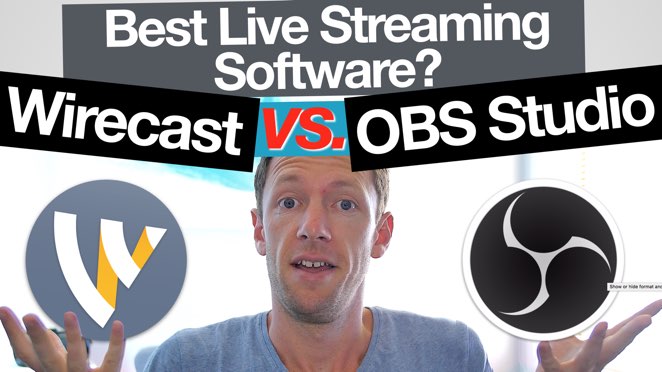
XSplit vs OBS vs Wirecast: Best Live Streaming Software for Mac and PC (Comparison!) - XSplit

XSplit vs OBS vs Wirecast: Best Live Streaming Software for Mac and PC (Comparison!)

What’s the BEST Live Streaming Software? We compare XSplit vs OBS vs Wirecast in this review! Links When available, we ...
View →

How To Add Subtitles on YouTube (Quickly & Accurately!)

Have you been thinking about levelling-up your YouTube videos with closed captions? Or, still not sure whether you should bother ...
View →
Final Cut Pro Tutorial Step-By-Step For Beginners! (2025)

Final Cut Pro Tutorial: Step-By-Step For Beginners! (2025)

Navigating the world of video editing can be a bit daunting, especially for beginners. With Final Cut Pro, however, you’re ...
View →
How To Go Live On TikTok Like A PRO In 2023!

How To Go Live On TikTok Like A PRO In 2024!

Here’s how to go live on TikTok like a PRO! In this complete TikTok live streaming tutorial, you’ll learn exactly ...
View →
YouTube Community Tab & Posts - The COMPLETE Guide!

YouTube Community Tab & Posts – The COMPLETE Guide!

Today we’re going to show you exactly how to use the YouTube Community Tab.  The YouTube Community Tab is a ...
View →
How to Sync Video and Audio: Multiple Cameras and Tracks - Public Relations

How to Sync Video and Audio: Multiple Cameras and Tracks

When I first started out in video production, on my first multi-camera shoot I had no idea how to sync ...
View →
Fix Flickering Drone Footage: How to Remove Drone Blade Flicker and Strobing - Product design

Fix Flickering Drone Footage: How to Remove Drone Blade Flicker and Strobing

Flicker or strobing is common in Drone videos, often caused by blade rotation… Fortunately, there’s an easy way to fix ...
View →
Don't miss a thing!

Become a Primal Video Insider to stay in the loop.

If you get my best Blue Steel impression now, just imagine what's waiting for you on the inside...

Become a Primal Video Insider and unlock:
We hate spam and promise to keep your email address safe.
Check out our Privacy Policy for more info!

If you get my best Blue Steel impression now, just imagine what's waiting for you on the inside...

Become a Primal Video Insider and unlock:
We hate spam and promise to keep your email address safe. Check out our Privacy Policy for more info!